Page 1 of 1

Screen Shots...

Unread postPosted: Fri Sep 14, 2012 1:07 am
by steamman
This is going to seem like a dumb question I think, and I'm probably missing the obvious. But I've never had any need or desire to take a screen shot in RW until now, and I'm a little befuddled. Now since Win 7 has no clipboard viewer, so 'print screen or 'shift-print screen' doesn't do anything, or so it would appear... And I couldn't see anything in the docs, I probably missed it knowing me... How are you guys taking screen shots?, or is RW taking it and putting it in some folder I don't know about?? Thanks.

Re: Screen Shots...

Unread postPosted: Fri Sep 14, 2012 1:16 am
by steamman
Never mind... I just woke up, and see the "adding images to a post" (above) *!embar*! .. I'll try some of that and see how I make out...

Re: Screen Shots...

Unread postPosted: Fri Sep 14, 2012 4:25 am
by Marleyman
I use the Windows 7 'Snipping Tool' for static images. I openTS2012 in a window then;

To capture a snip

Open Snipping Tool by clicking the Start button . In the search box, type Snipping Tool, and then, in the list of results, click Snipping Tool.

Click the arrow next to the New button, select Free-form Snip, Rectangular Snip, Window Snip, or Full-screen Snip from the list, and then select the area of your screen that you want to capture.

To save a snip

After you capture a snip, click the Save Snip button in the mark-up window.

In the Save As dialog box, enter a name for the snip, choose a location where to save the snip, and then click Save.

Re: Screen Shots...

Unread postPosted: Fri Sep 14, 2012 2:29 pm
by Chacal
RW has a built-in screenshot function.
Just hit Ctrl-S while playing.
The shots are stored in "My pictures"

Re: Screen Shots...

Unread postPosted: Sun Sep 16, 2012 6:54 pm
by LoneWolfDon
The Steam-Client also has a built-in way to take screen-shots of games you're playing at the time, it's the F12 key by default. Then after you close the game, go to your profile, and you should see a "Screenshots" link you can click on to access & manage them.

If you then click on a picture to enlarge it, you'll see it open up full-size in a new windows, and a url/link along the top you could then copy & paste if you want to post it in a forum perhaps to let others see. Example;

http://cloud.steampowered.com/ugc/54290 ... F60573A7E/
That's a screen-shot on my Steam-profile, taken from my Western Wildwood route.

You may need to have your Steam-profile set to Public though if you want others to be able to see it.

Or, you could upload some of your images to some photo-sharing site, such as make yourself a free account at http://photobucket.com/ , then upload your images, then you can copy & paste the link to your image, example; http://i1231.photobucket.com/albums/ee5 ... HD_032.jpg ,or for some forums (like RWA here), you can put the image-url into the Img code, and have it appear on your post, like this:
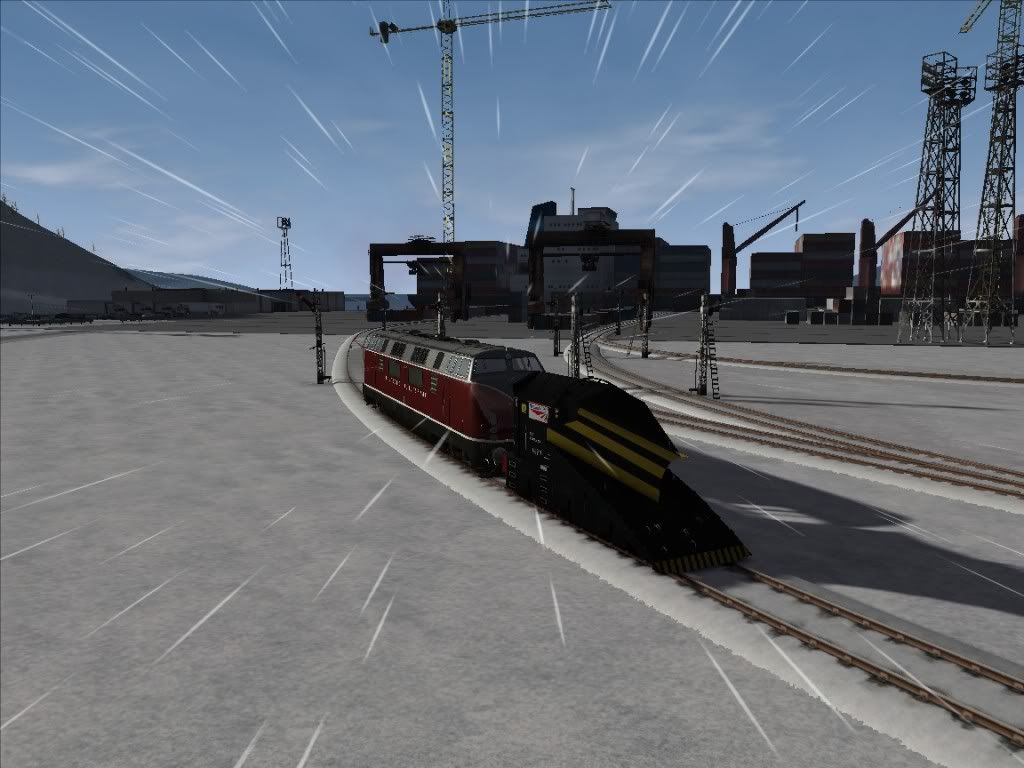
Image
Image
(Screenshots from my King's Arm Highway Deluxe route, http://www.rryard.com/kings_arm_deluxe.html ,at the Shipyard area)

Cheers! :)

Re: Screen Shots...

Unread postPosted: Sun Sep 16, 2012 7:25 pm
by BNSF650
Or you can use FRAPS

Re: Screen Shots...

Unread postPosted: Tue Sep 18, 2012 12:42 am
by GSkid
I just use the one built in. No need to use any other means that I can think of.

I used it to compare the different effects options and quality sliders to see the differences. It convinced me to not use the bloom effects. It bleaches (lightens and whitens) everything to the point that it looks more unnatural compared to with it off. I suppose it''s a nice effect to have if you like that. But honestly my Laptop can handle TSX-ON and all filters and effects on max with no problems. Only on Donner Pass does it start to tax it at max settings and even then the frame rate is very tolerable. So no need to lower the settings.

I am going to take some shots to see if there is any noticeable difference between 2012 and the new 2013 other than a higher frame rate.